SSTP - How to configure SSTP with Windows built-in client on Windows 7
Open Control Panel, then in search type in network, and click on Set up a virtual private network (VPN) connection.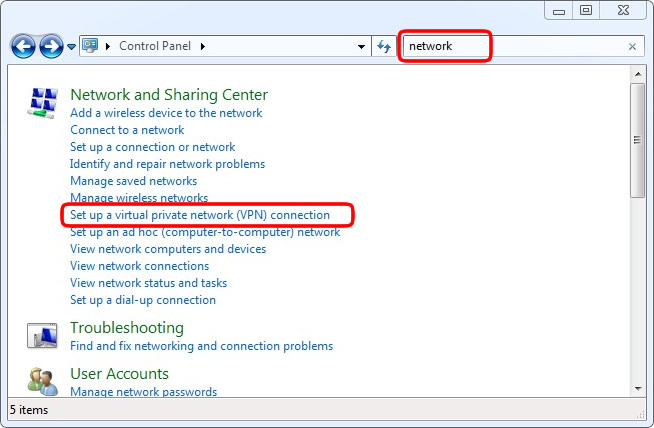
STEP 2
On Set Up a Connection or Network screen, select Connect to a workplace, then click on Next button.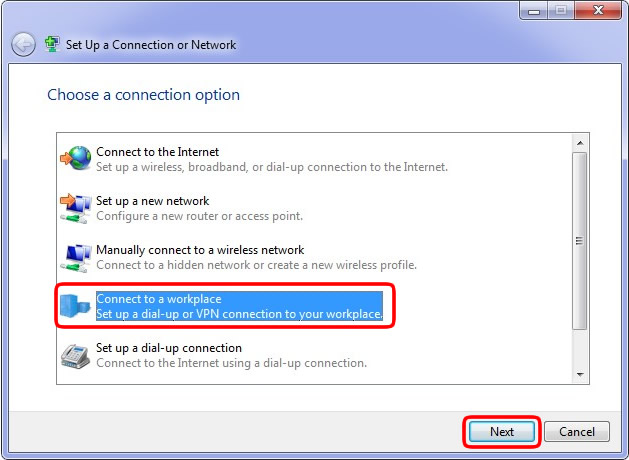
STEP 3
On Connect to a Workplace screen, select Use my Internet connection (VPN).
STEP 4
On next Connect to a Workplace screen, for Internet address type in GTX1.ASTRILL.NET, for Destination name type in Astrill SSTP. Click on Don't connect; just set it up so I can connect later checkbox, and then click on Next button. Full list of available VPN servers can be found on Members section, (https://members.astrill.com/servers-list.php).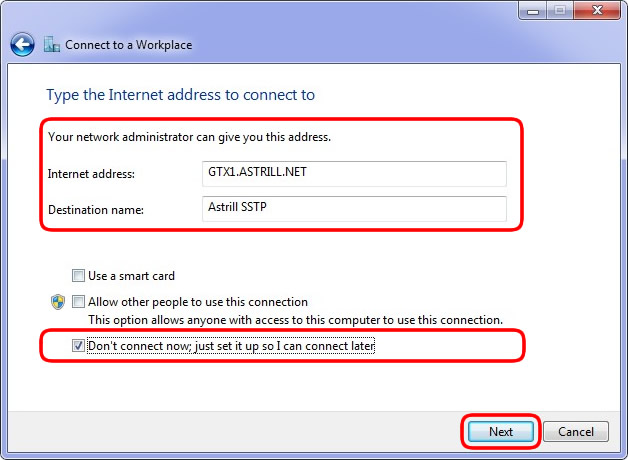
STEP 5
On next Connect to a Workplace screen, for Username type in your Astrill account email, and for Password type in your Astrill account password. Click on Remember this password checkbox, and then click on Create button.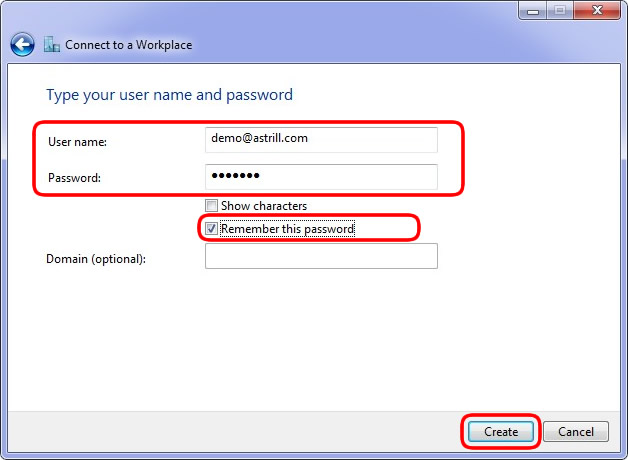
STEP 6
On next Connect to a Workplace screen, click on Close button.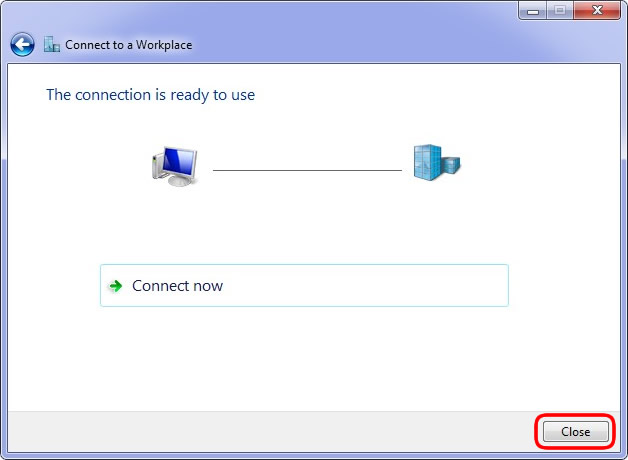
STEP 7
Click on Network icon in tray, under Dial-up and VPN, right-click on Astrill SSTP, and select Properties.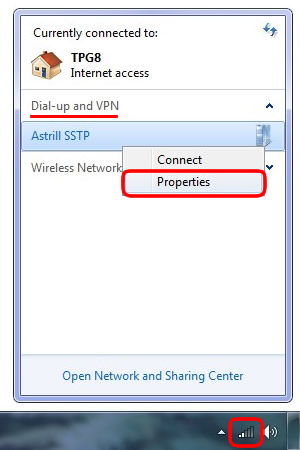
STEP 8
On Astrill SSTP Properties screen, click on Security tab, for Type of VPN select Secure Socket Tunneling Protocol (SSTP), then click on OK button.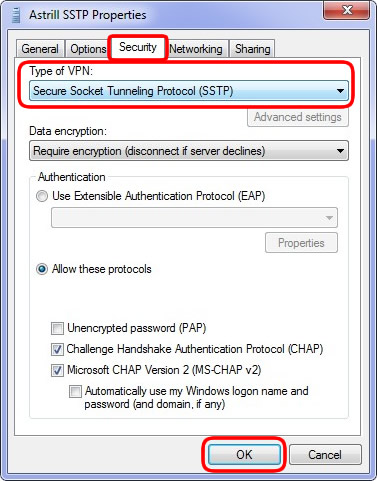
STEP 9
Click on Network icon in tray, under Dial-up and VPN, click on Astrill SSTP, and click on Connect button.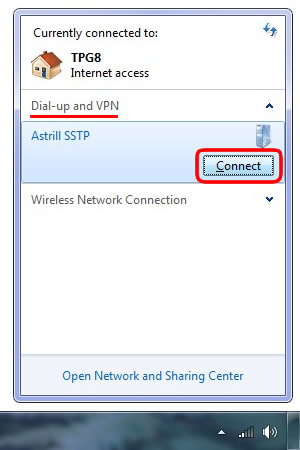
STEP 10
On Connect Astrill SSTP screen, click on Connect button.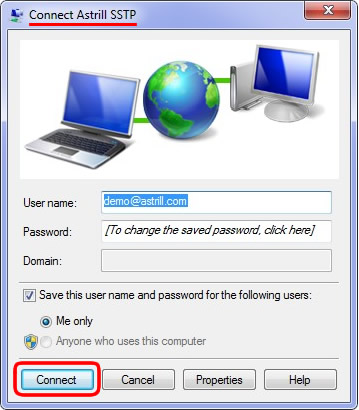
STEP 11
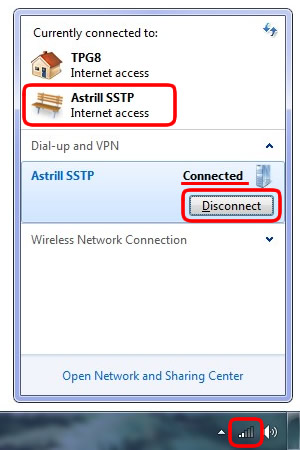
Click on Network icon in tray, under Dial-up and VPN, click on Astrill SSTP, you will see status connected. Which indicates you are successfully connected to Astrill SSTP VPN. To disconnect from Astrill SSTP, simply click on Disconnect button.